Layer 2 of 7 — you are here
Day Two · Companion to Chapter 5
Identity & Accounts
Every protection in Layers 3 through 5 hangs off one fact: the platform knows this account belongs to a child of a specific age. Day Two makes that true. If your kid is currently using an adult account, a shared account, or an account with a made-up birthday, today is the day we fix it — and yes, it can be fixed without losing their stuff.
Apple: Family Sharing + child Apple IDs
Set up the family group
- On a parent iPhone: Settings → [your name] → Family (older iOS: Settings → [your name] → Family Sharing). Tap the add-member button.
- Invite the second parent first. Then tap their name in the family list and choose Set as Parent/Guardian (only the organizer can do this) — it lets them approve purchase and screen-time requests too. Both parents should be guardians; a one-guardian family has a single point of failure.
Create a NEW child Apple ID
- Settings → Family → add member → Create Child Account.
- Enter the child's real birthday. This is the moment the real-birthday rule matters most — everything downstream keys off it.
- Follow the consent step — Apple verifies parental consent for under-13 accounts with your payment card's security code, or a driver's license/state ID stored in Wallet where available.
- Accept the default that the child's account can't leave the family group without parent approval.
Convert an EXISTING account to a child account
If your kid already has an Apple ID with a fake birthday: don't create a new account and abandon the old one — their purchases, messages, and game progress live on it. Fix the account itself.
- Add the child's existing Apple ID to your family group (Settings → Family → add member → invite their address).
- Then correct the birthdate — on the child's signed-in device or at account.apple.com under personal information. Moving a birthdate down below 13 is gated, not forbidden: the account must already be in your family group, and you as the organizer approve the change (Apple walks you through its Parent Privacy Disclosure and verifies with your payment card's security code). One warning: once a birthdate is set to under 13, Apple won't let it be edited again — get it right.
- Once the account is recognized as a child account inside your family, all child protections apply to it exactly as if you'd created it fresh.
Turn on Ask to Buy
- Settings → Family → [child's name] → Ask To Buy → turn on. It's on by default for kids under 13 — and in some states and countries it's now mandatory (can't be turned off) for anyone under 18. Verify anyway.
- Now test it. On the child's device, try to download any free app. A notification should land on the parent phone asking for approval. If no request arrives, Ask to Buy is not actually working — troubleshoot before moving on. The test is the setup.
Google: Family Link
Set up the family group
- Install the Google Family Link app on the parent phone (iPhone or Android — the parent side works on both).
- Create your family group from the app (whoever creates it is the family manager), then add the second parent and give them the parent role in family settings — both roles can approve Family Link requests and manage supervision.
Create a NEW child Google account
- In Family Link: add child → Create account for a child. Or do it during setup of a new Android device — it offers the same flow.
- Real birthday. Same rule, same reason.
- Complete the parental-consent step — in the US, Google verifies with a payment card via a temporary authorization hold, not a charge (it drops off within a couple of days).
Convert an EXISTING Google account to supervised
- Supervision setup starts on the child's device, not in your Family Link app: child's device → Settings → Google → All services → Parental controls → "Let's do this" → choose their account, then a parent signs in to confirm. The child consents on their device, so do it together. (Chromebook: Settings → Accounts → Parental controls.)
- If the account has a fake adult birthday: correct the birthday first (myaccount.google.com → Personal info → Birthday). When a correction moves an account into under-13 territory, Google gives it 14 days to come under parental supervision before the account is disabled — so do the supervision setup the same day, not "this weekend."
- For teens (13+), supervision can still be added — and under Google's current rules, a child under 18 needs a parent's approval to stop supervision (both of you are notified if it ends). The account layer holds better for teens than it used to; it's still a trust structure, so pair it with the conversation.
Purchase approvals on Google
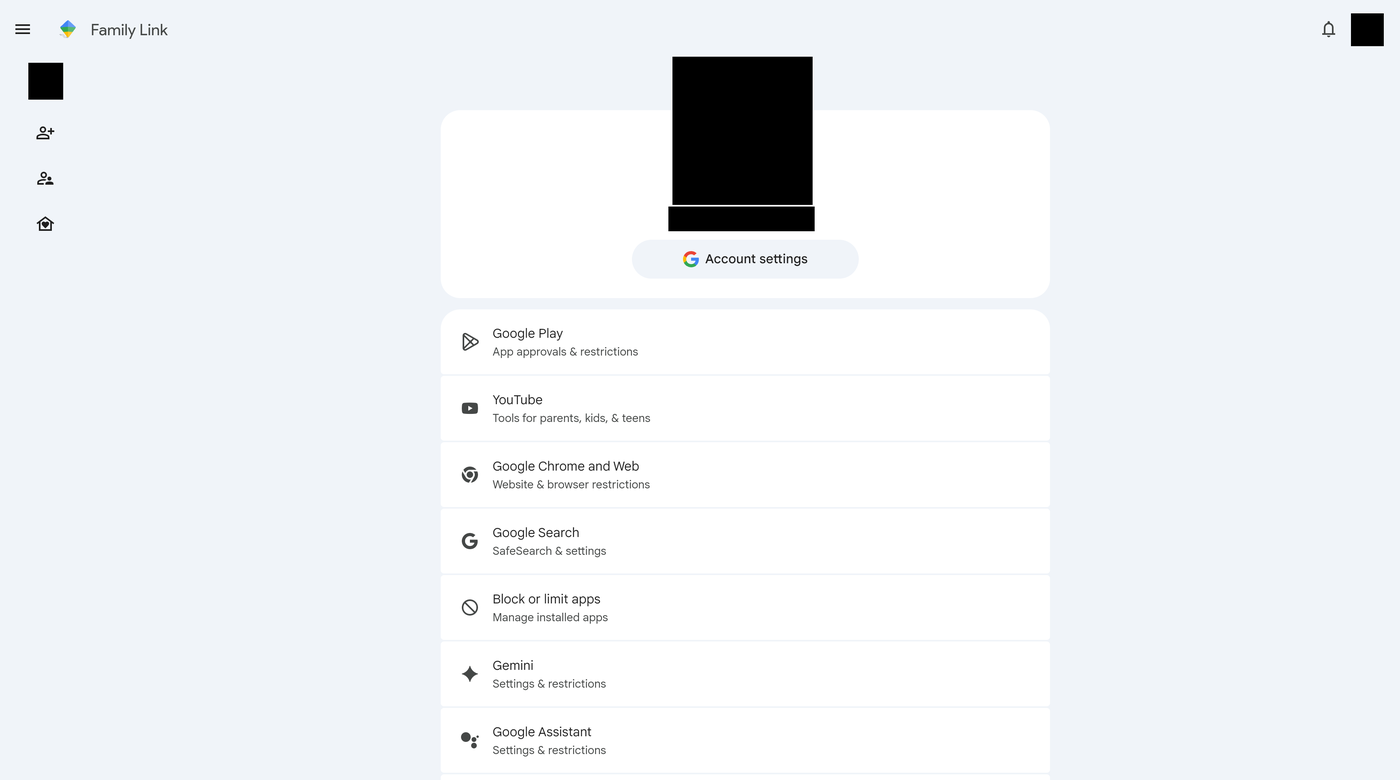
- Family Link → [child] → Controls → Google Play → under Purchases & download approvals, set Require approval for to All content. (The other options — paid only, in-app only — leave gaps; start strict.)
- Test it the same way: have the child's device attempt a free-app install and watch the approval request arrive on the parent phone.
Email consolidation + the dead email rule
Day Two is also the day you clean up the account sprawl the Inventory exposed. Old email addresses are unlocked doors: password resets for current accounts flow through them.
- Consolidate: each parent should have ONE primary email that owns the important things (the DNS dashboard, the family organizer accounts, banking). It goes in the vault as a wall key on Day Six.
- The dead email rule — audit before delete: never close an old email address the day you decide to. First, search its inbox for "verify," "receipt," "welcome," and "password" to find every service still pointed at it. Re-point each of those accounts to your primary email. Only when a month passes with nothing important landing there do you close it.
- Why the order matters: close the address first and you've locked yourself out of every account that resets through it — or worse, some providers recycle dead addresses, handing those resets to a stranger.
Done when
- Every kid has their own account with their real birthday, inside the family group.
- Both parents are guardians/managers on both ecosystems you use.
- Ask to Buy / purchase approvals are on and you watched a real request arrive.
- Each parent has one primary email; every old address is on the audit-before-delete track.